


Follow these instructions to use the classroom audiovisual (AV) systems in the 4th-floor computer labs: Rooms 401, 402, 403, 404, 405, 407, 408, 409, 410, and 415.
1. Log In to the Teacher Station
Note: Displays may appear not to be working if the selected source is unavailable.
2. Power on the Display/Displays
To display the teacher station computer:
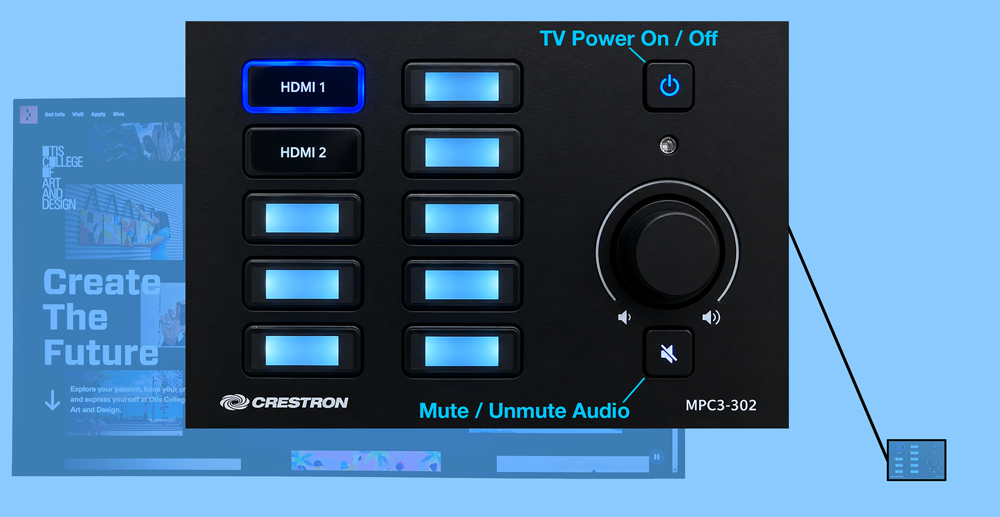
- Press the Power button on the Crestron MPC3-302 Media Presentation Controller to turn on the TV or TVs. Do not use the TV remote to turn the TV on or off.
- Press HDMI 1 (the top-left button) to select the teacher station as the display source.
- To turn off the TV or TVS, press the Power button on the controller.
3. Always-on Ceiling-Mounted Speakers
-
Adjust the speaker volume using the volume control knob.
-
Press the Speaker Mute button to mute or unmute the ceiling-mounted speakers
🛠️ Troubleshooting
Display Issues
No image on the displays?
-
Confirm that the teacher station is logged in.
-
Verify that HDMI 1 is selected as the input source.
Need to mirror or extend your display?
-
Windows 11: Mirror Your Display in Windows 11
Audio Issues
No sound from the ceiling speakers?
-
Confirm that the audio is unmuted on the presentation controller
-
Power button: Blue indicates the system is ON
-
Audio button: Blue indicates the audio is MUTED
-
-
Verify that the volume is turned up.
-
Check that your computer is using the correct audio output device.
Need help configuring your audio output?

