


Select an Audio Output Device in Windows 11
Last updated: Oct 27, 2026
92
views

You can change your audio output device using Quick Settings on the taskbar or through Windows Settings.
Method 1: Quick Settings (Fastest)
1. Click the Sound/Volume icon in the bottom-right corner of the taskbar, next to the Wi-Fi and battery icons.
2. Click the Select a sound output button next to the volume slider.
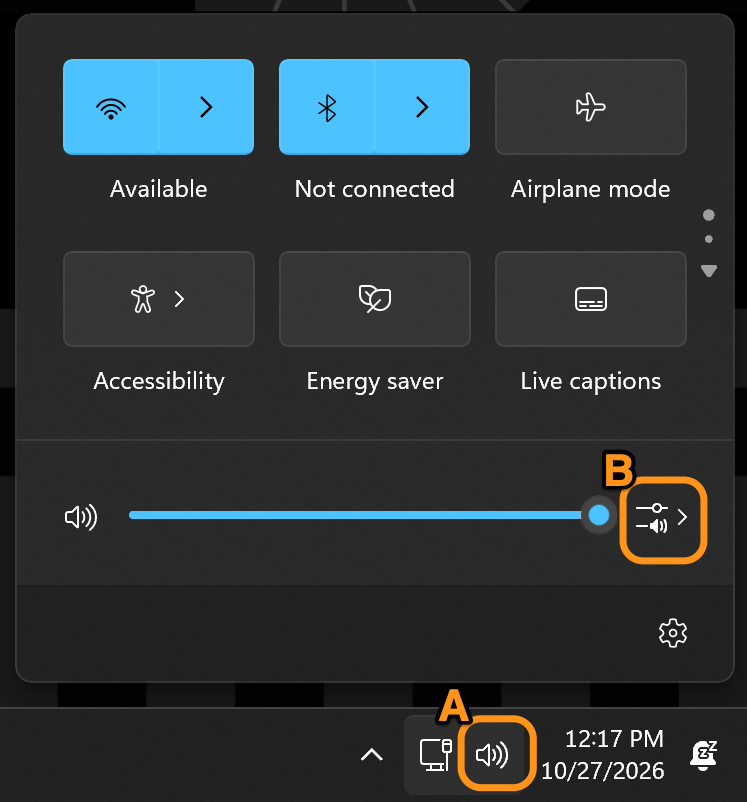
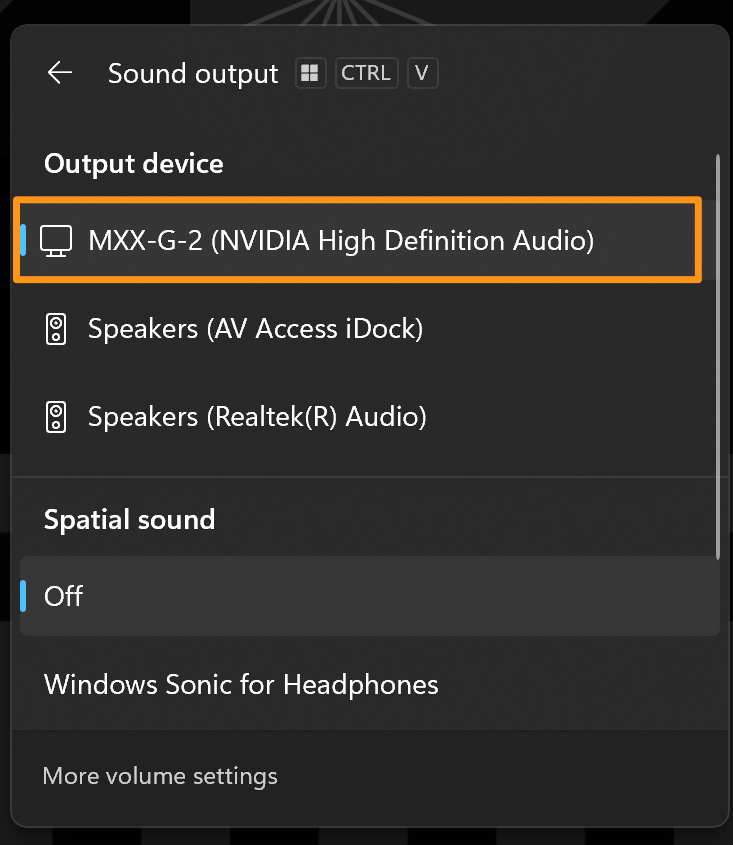
3. Select your preferred audio device from the list
- Note: In the 4th-floor computer labs, select MXX-G-2 to route audio to the ceiling-mounted speakers.
Method 2: Windows Settings
-
Press Windows + I to open Settings.
-
Navigate to System > Sound.
-
Under Output, select your preferred device from the list of available audio output devices.
-
To set a device as your default, select the device and choose the option to set it as the default sound device.

