890
890
This quick guide helps you operate classroom technology, access network resources, and find support when needed.
For additional help, go to helpdesk.otis.edu
NOTE: Instructors are encouraged to test their assigned classroom technology before the first class to confirm setup and equipment compatibility (e.g., Mac/PC, adapters, Cintiq, etc.).
The Teaching/Learning Center and the OTIS IT Helpdesk are available to assist you with testing technology before your class.
Helpdesk: [email protected]
TLC: [email protected]
Classroom AV & Technology
For information about the technology available in your assigned teaching space, please visit the Classroom Features page. Select your classroom to see a list of installed equipment, along with links to instructions for using the projector, scanner, document camera, and other available resources.
Accessing Network Volumes / Shared Drives
To share files with students in the lab, use the "Transfer_Only " folder or upload your files to Google Drive.
Please note: AirDrop is not supported on lab computers.
Hardware and Software Purchase
As part of a new process approved by the Chairs Council, hardware and software requests for courses will now be submitted to IT only by Department Chairs and Academic Department Directors, rather than by individual faculty.
Requests for major hardware or software purchases must be submitted by your department chair by March 15 to be considered for inclusion in the yearly budget.
Requests made after this date may not have funds allocated and will roll into the next budget cycle for review.
Printing & Copying
Resource for all things printing and copying at Otis College. Whether you’re a student preparing a portfolio or a faculty member printing handouts, you’ll find essential guides and helpful information linked here.
Equipment Checkout Locations
- Cintiq Pens: 4th Floor Main Lab (Room 401). Get Your Own Cintiq Pen!
- Photography Equipment: 6th Floor Photo Lab. Click here for more info
- Video & Audio Equipment: Media Services in the basement in room B10. Click here for more info
Requesting Facilities Support
If your classroom is too warm or too cold, or needs maintenance, please contact the Facilities Department for assistance.
Email [email protected]
Or submit a Facilities Request Form
IT Support & Helpdesk Assistance
If you experience classroom or technology issues:
-
Call (310) 665-6825 for immediate help
-
-
Email [email protected] for non-urgent requests
-
Visit helpdesk.otis.edu to search our Knowledge Base articles
-
Contact Media Services for classroom audiovisual equipment needs at (310) 665-6972 or [email protected]
-
Schedule an appointment with the Teaching/Learning Center staff for additional support
Good Practices Before Leaving Class
- Please power off the projector when finished.
- Restart or log off the computer to restore default settings and ensure you are signed out of all applications and browsers.
- If a document camera is present, confirm it’s turned off (the orange light indicates power is off).
- Erase all whiteboards or glass boards.
- Return all cables and remotes to their designated spots.
- Reset furniture to the original room layout.
- Dispose of any trash properly.
Quick References
-
Classroom Features
Overview of technology and equipment available in each teaching space. -
Helpdesk Portal
Submit and track IT support requests for timely assistance. -
Facilities & IT Request Form
Submit requests for classroom, lab, or facilities support. -
Printing & Copying Resources for Students & Faculty
Guidelines for campus printing and copying services. -
Open-Access and After-Hours Access Policy
Rules for accessing labs and classrooms outside normal hours. -
Adobe CC, Otis email & Google Drive Access Policy
Policies for key software and cloud services used at Otis. -
What's New at Otis IT
Updates on IT systems, tools, and available resources. -
Computer Lab Hardware and Software Update Schedule
Timeline for lab equipment and software updates. -
Student Technician Support: Responsibilities and Scope
Overview of student tech support roles and available services. -
Student Technician Support: Responsibilities and Scope
Overview of student technician roles and support limitations. -
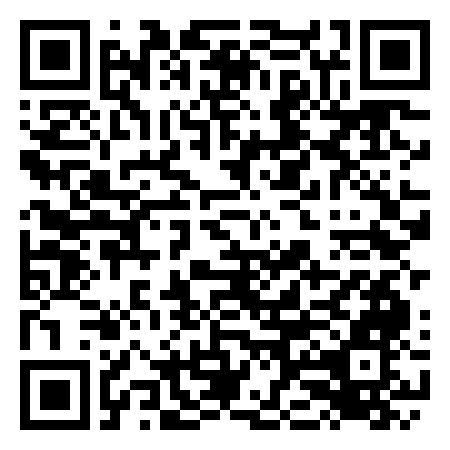
Click here or scan the QR code below to access this guide
Step-by-step guidance for using classroom and lab technology. -