472
472
1. Locate the Adobe Creative Cloud app in your Applications folder and launch it by double clicking the icon.
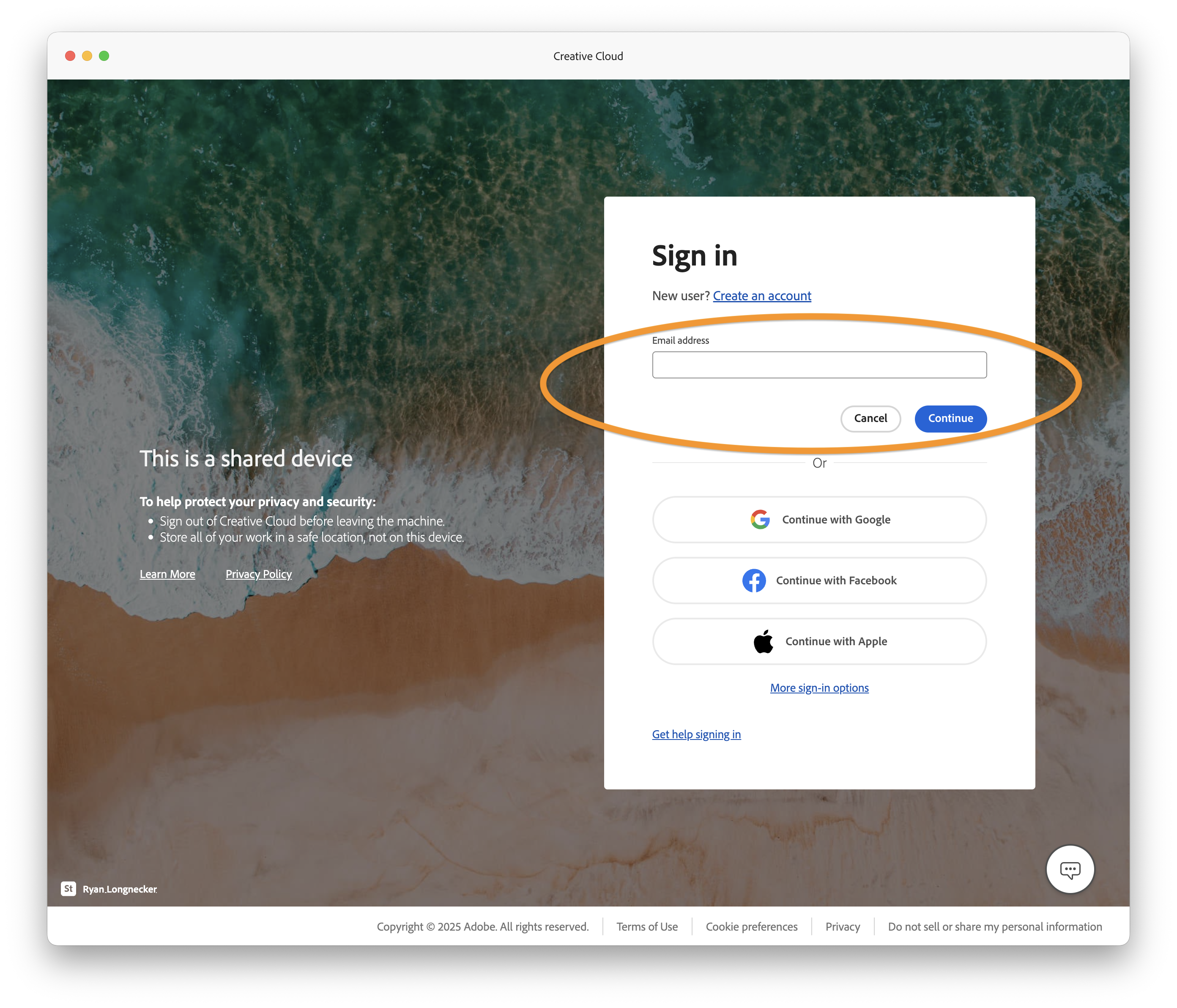
2. Use your student email address to log in (i.e. [email protected]).
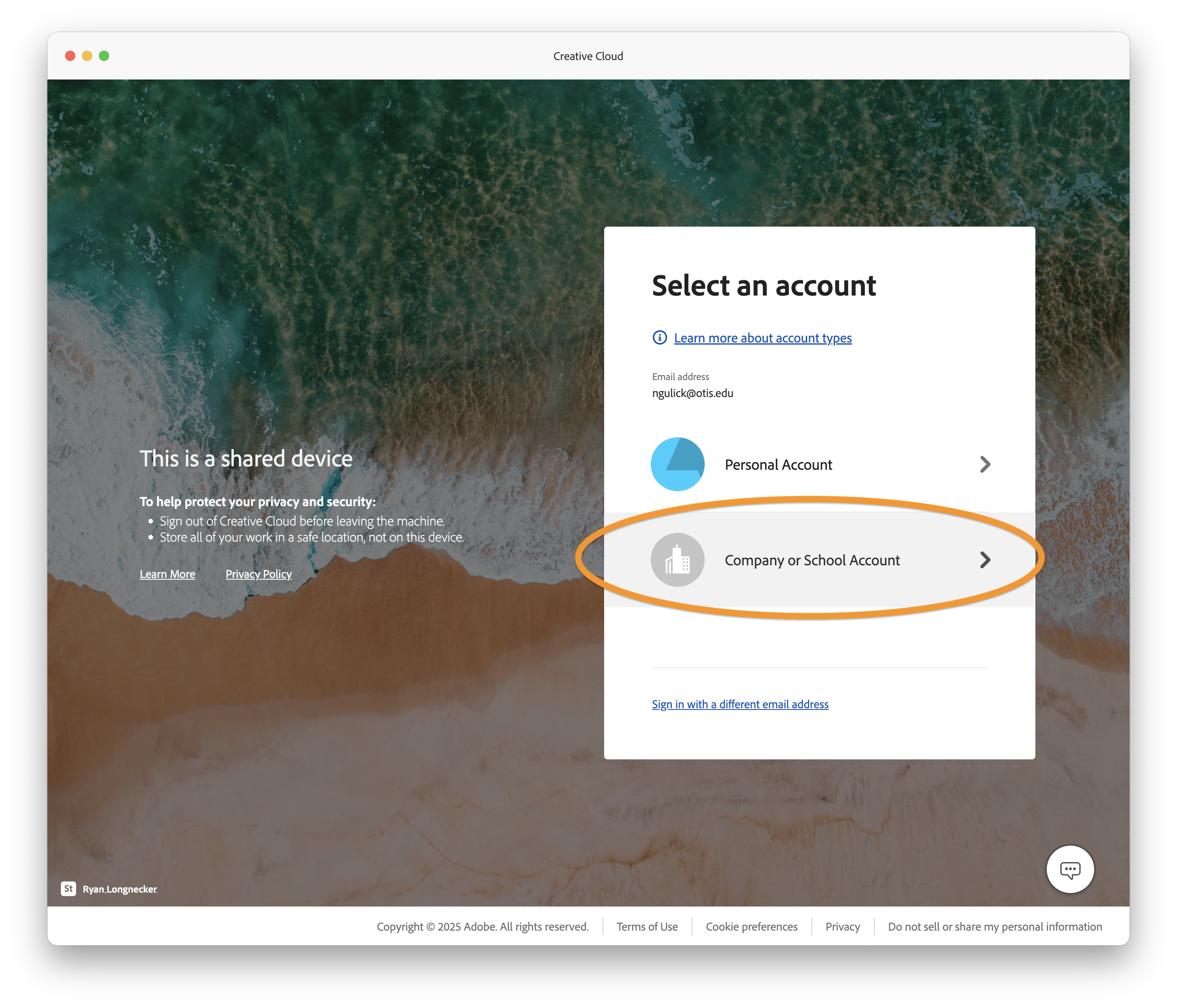
3. At the "Select an account" screen, choose "Company or School Account." You will then be prompted to create a password for your Adobe Creative Cloud account. Please create a password with at least 8 characters, one number, one uppercase letter, and one special character.
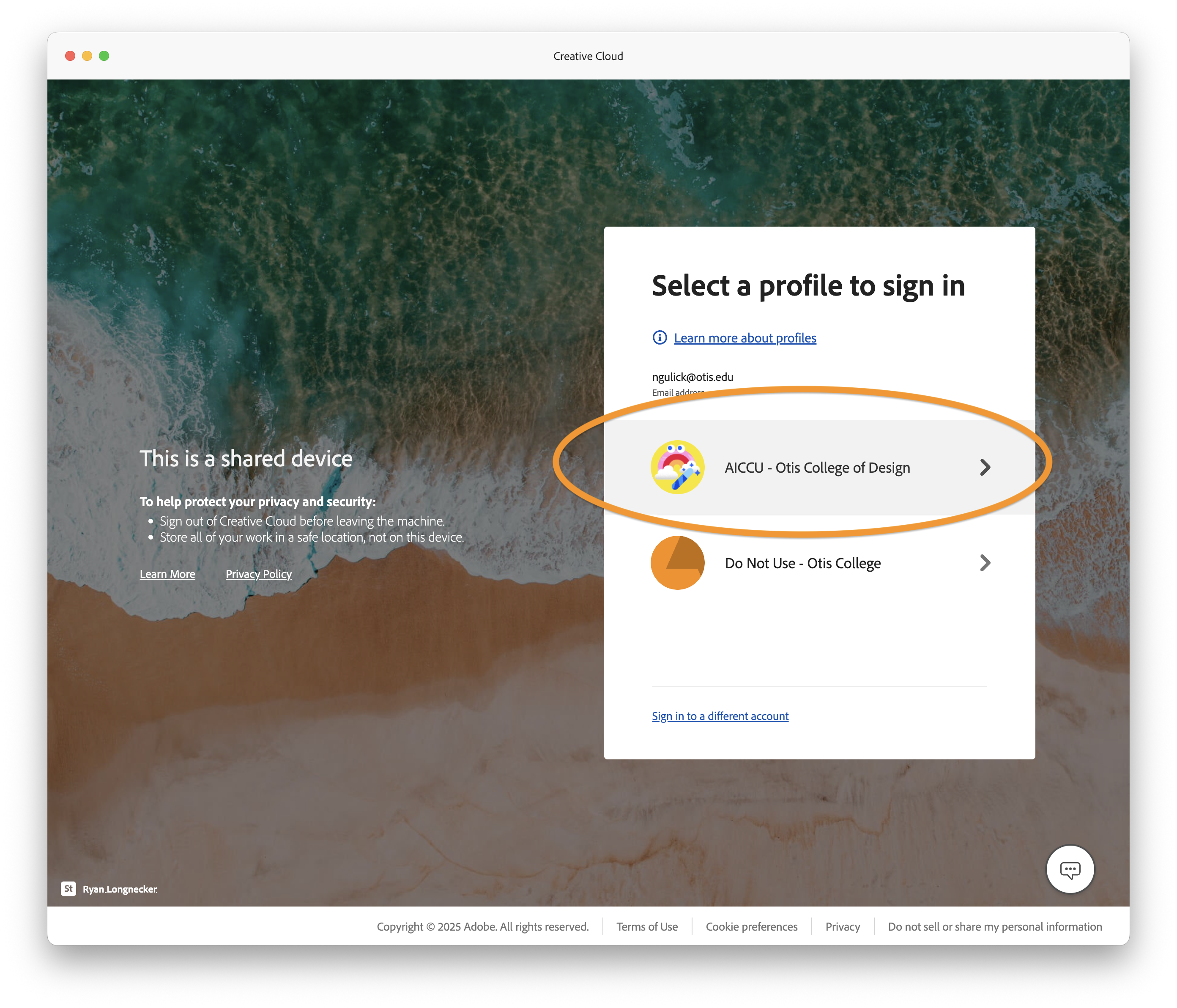
4. At the "Select a profile to log in" screen, "choose AICCU - Otis College of Design."
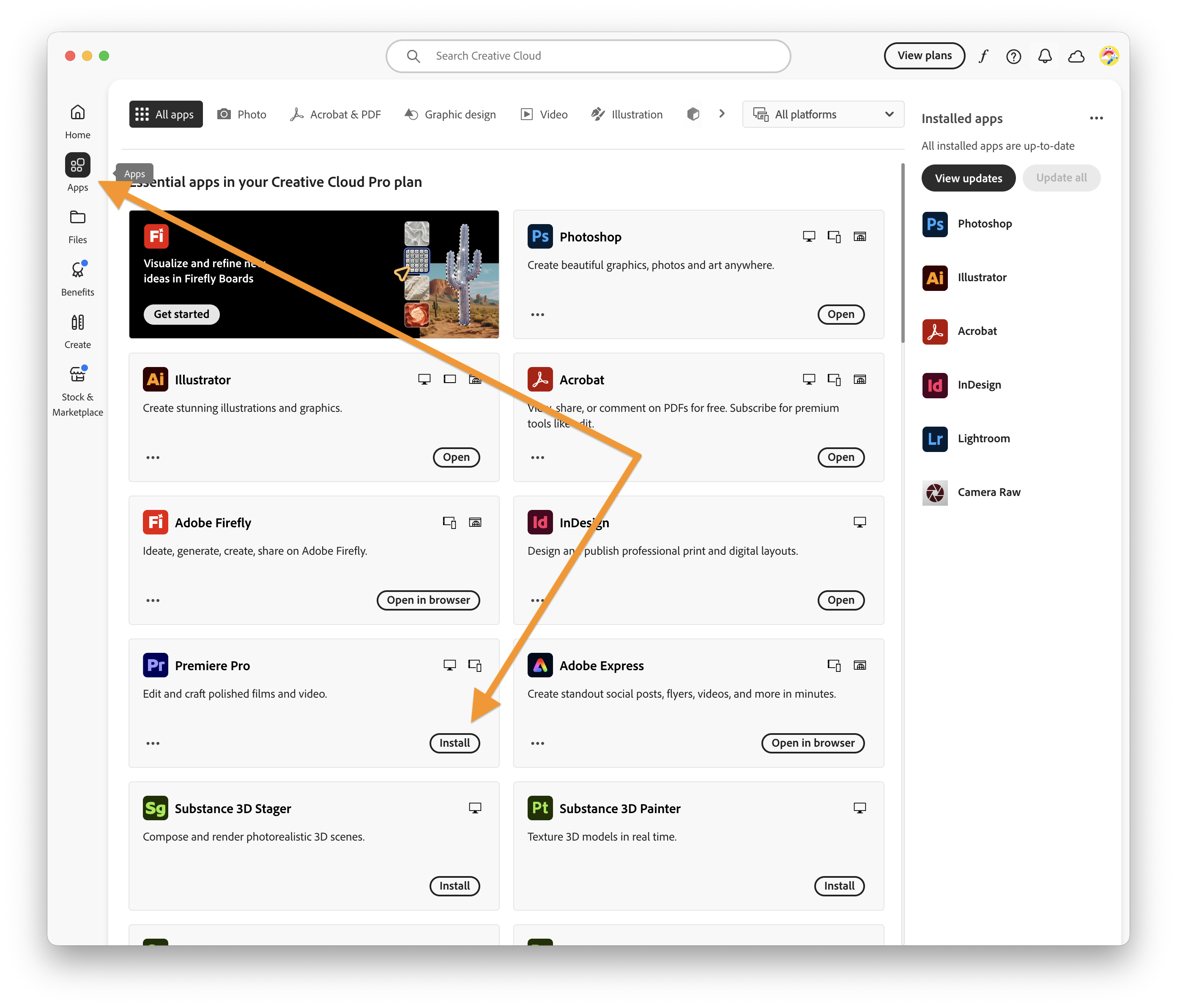
5. Once the Creative Cloud app loads, find the tab called "Apps" on the left side of the window. Here you will see the list of all available Adobe Apps. To install them on your computer, click the "Install" button near the app icon. Give it time to download and install. When it is complete, the button will now read "Open."