How to Access the Transfer_Only Volume for Temporary File Sharing

Last updated: Jun 16, 2026
2148
views

Note: The purpose of the Transfer_Only volume is only to transfer data between computers. It is accessible to all students. Data stored there will be automatically deleted after 72 hours.
Mac
- Double-click the Transfer Only icon on the desktop or go to Finder, click Go > Connect to Server ( You can also hit Command + K )
- Enter or select the path of the network drive you're trying to connect to ( e.g., smb://acswinserver.otis.edu/Transfer_Only ), then click connect

- If prompted, enter your username (or x-number) & password, then click OK to mount the network drive.
Windows PC
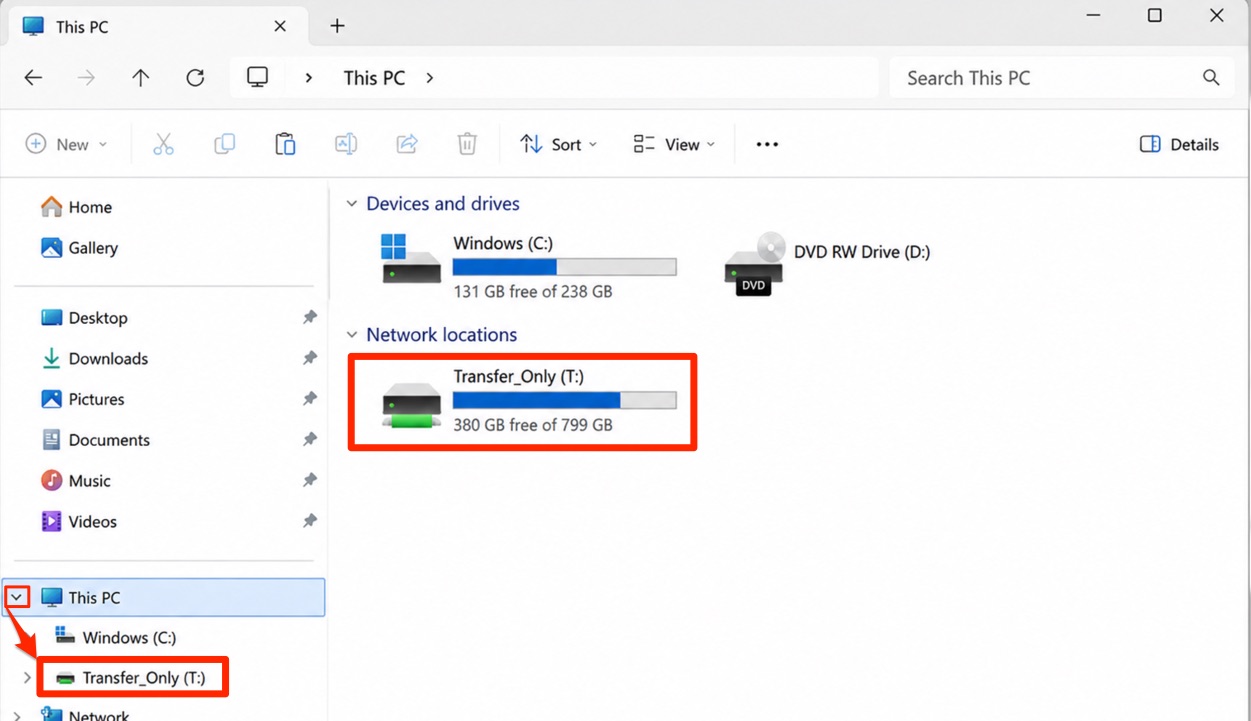
- Double-click the File Explorer icon in the taskbar that is located at the bottom of the screen, or type \\acswinserver.otis.edu\Transfer_Only in the File Explorer