Presentation Setup - Room 406 & 410

Last updated: Dec 17, 2025
2034
views

How to Switch Inputs and Outputs on the Arvitek Matrix Switcher in Room 410
Using the Front Panel
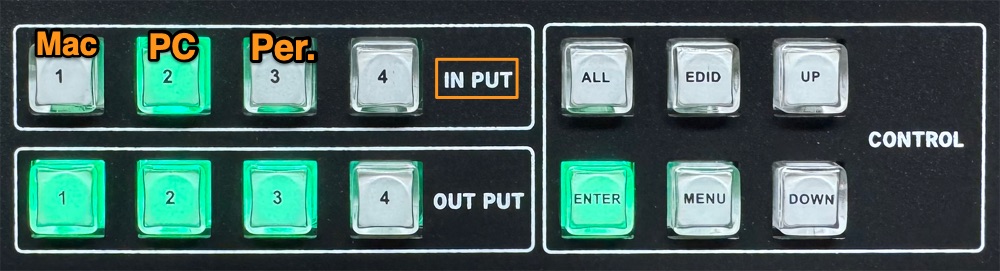
1. Select an Input
Press the button for the input you want to use:
-
Input 01 – Mac
-
Input 02 – PC
-
Input 03 – Personal Device
The LED for that input will light up to confirm your selection.
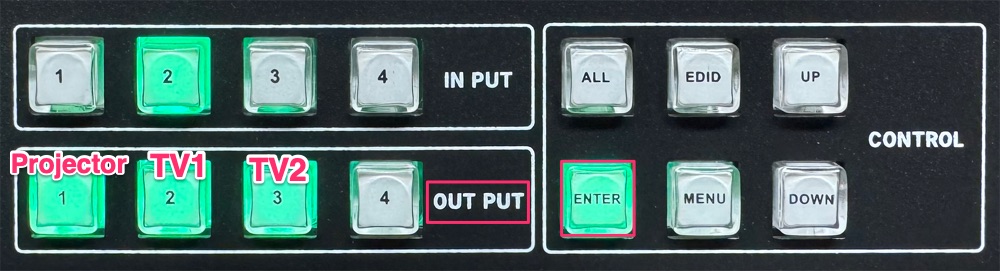
2. Select an Output then press Enter
Next, press the button for the output where you want that input to appear, then press Enter
[ You can also select ALL to send content to Projector, TV1, and TV2 ]
-
Output 01 – Projector
-
Output 02 – TV01
-
Output 03 – TV02
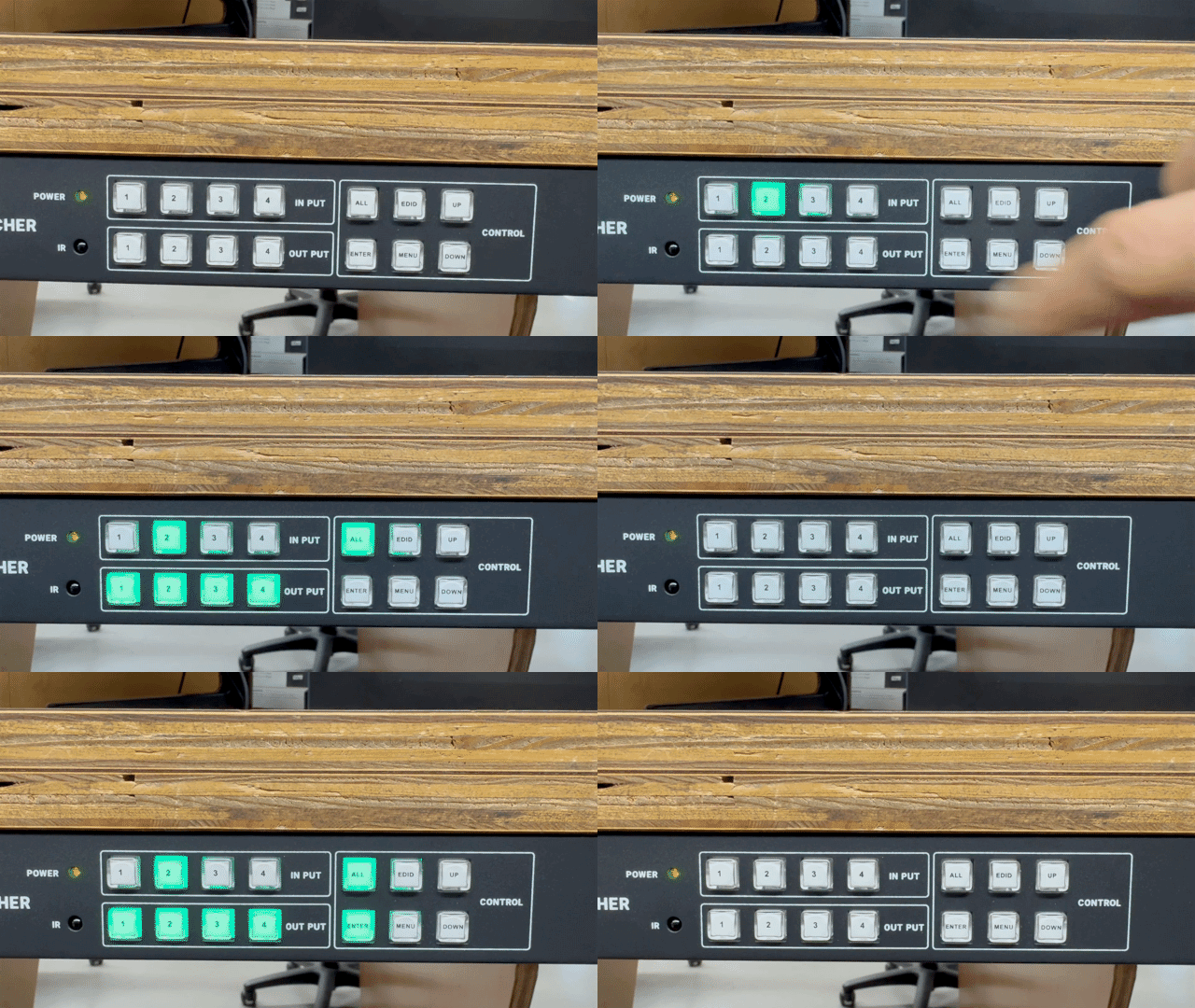
Example
Below is an example of how to route Input 02 (PC) to all outputs—Projector, TV1, and TV2.
Trouble Shooting
- Ensure that the input on TV1 & TV2 is set to HDMI
- Ensure that the input on the Projector is set to HDMI 1
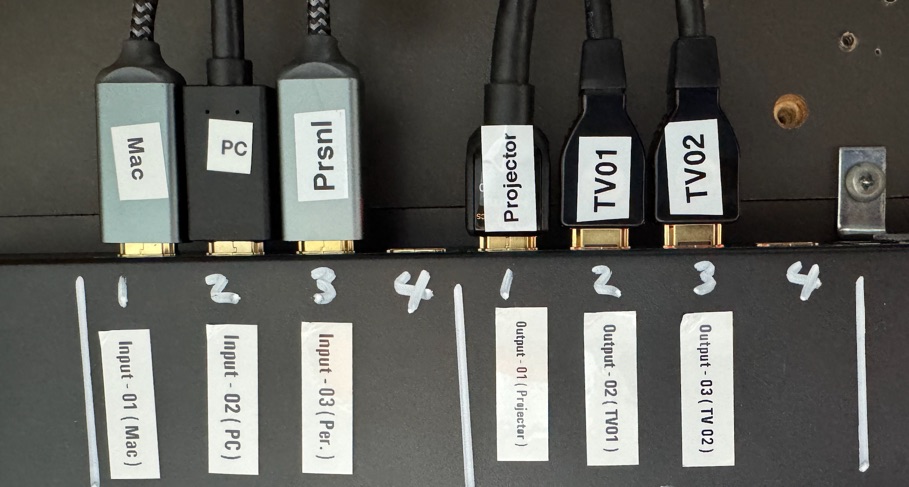
- Contact a Lab tech to ensure that cables are connected correctly to the video switcher.