How to Process Student Printing Charges Using PaperCut WebCashier
Last updated: Nov 04, 2026
93
views

These instructions are for OTIS Printing Services staff to process student printing charges through PaperCut WebCashier.
1. Log in to PaperCut WebCashier:
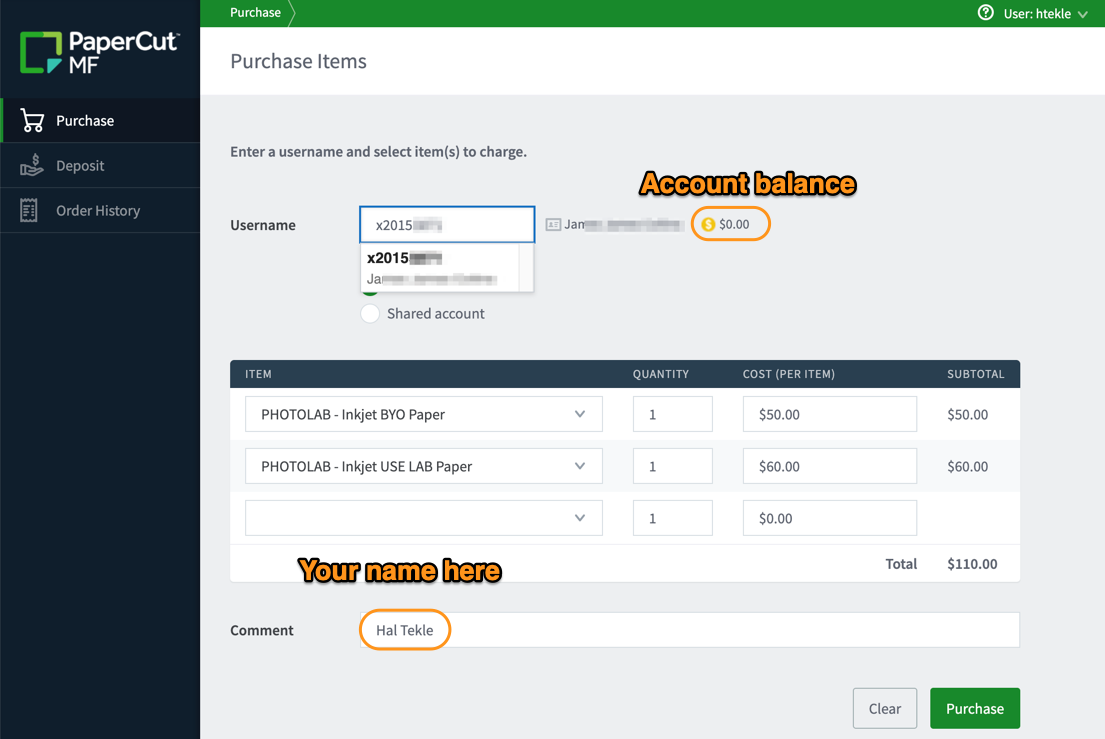
2. Select the student and enter the printing charges
-
Enter the student's Xnumber, then click their name to select their account.
-
Select the appropriate item(s), enter the quantity and price, and enter your name in the Comment field.
-
Click Purchase to charge the student's PaperCut account.