


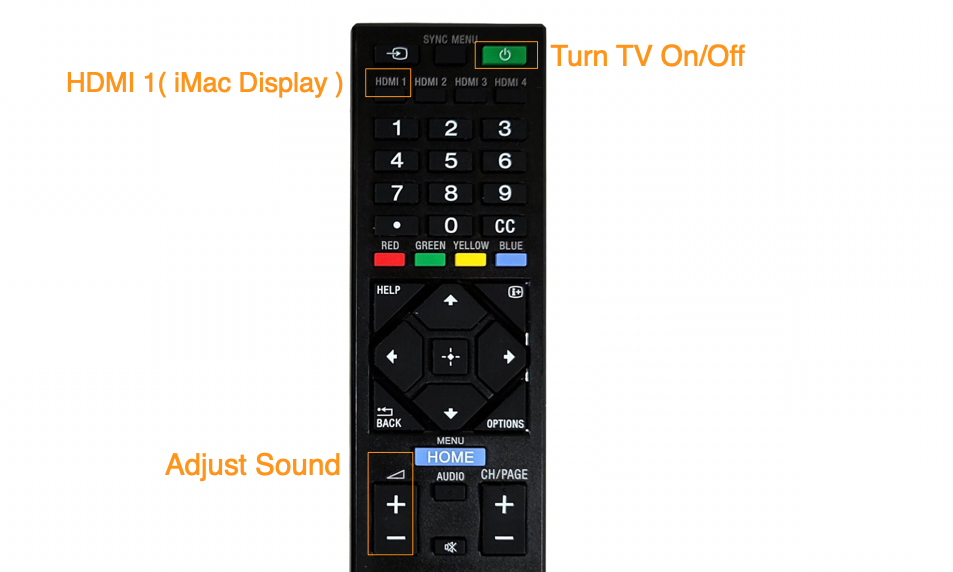
All 3rd-floor LAS classrooms (Rooms 312, 313, 314, 315, & 316 )are equipped with a large flat-screen TV and a remote control located at the instructor's station.
Please use the remote to turn on the TV at the beginning of class and turn it off at the end of class.
Important Notes:
-
Instructor Workstation: The instructor's iMac is connected to the TV via HDMI 1. The cable is labeled TV.
-
Personal Devices: A dedicated HDMI cable labeled Personal, along with USB-C adapters, is available on the podium. Connect your personal device using the HDMI 2 port.
Quick Step-by-Step Guide
-
Power On: Use the remote at the instructor's station to turn on the TV.
-
Select Input:
-
Instructor iMac: Select HDMI 1 using the remote. The cable is labeled TV.
-
Personal Device: Connect your device to the HDMI cable labeled Personal, then select HDMI 2 using the remote.
-
-
Power Off: Turn off the TV using the remote at the end of your class.
🛠️ Troubleshooting
Display Issues
No image on the TV?
-
Make sure the instructor's iMac is powered on and logged in.
-
Verify that HDMI 1 is selected as the input source on the TV.
Need to mirror or extend your display?
-
If the TV is on but not displaying the iMac screen, mirror or extend your Mac desktop to SONY. Follow the How to Mirror or Extend Your Display on a Mac instructions.
Audio Issues
No sound from the TV speakers?
-
Verify that SONY is selected as your Mac's audio output device. For instructions, see How to Choose Your Mac’s Audio Output Device
Need Further Assistance?
If the issue persists, please contact:
-
Media Services: (310) 665-6972
-
Computer Lab: (310) 665-6825

