


Accessing a Windows Network Share from macOS

Apr 09, 2026
 21
21
If you receive a network folder path from a Windows user (for example: \\gispwXXXXX\ACBG_XXXX_Shared) and you are using a Mac, follow the steps below to connect.
Why is this needed
Windows and macOS use different file path formats:
- Windows: Uses backslashes (
\) - macOS: Uses forward slashes (
/) and requires thesmb://prefix
Steps to Connect on a Mac
- Open Finder
- From the top menu, click Go > Connect to Server
(Shortcut: press Command (⌘) + K) -
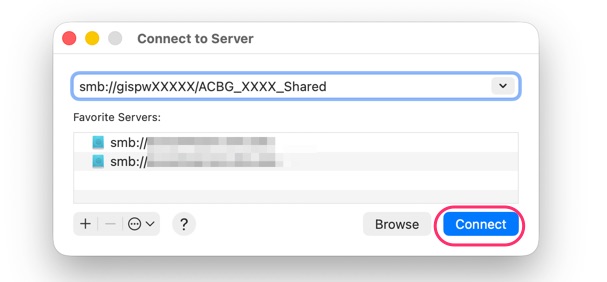
In the Server Address field, enter the path in this format:
smb://
gispwXXXXX/ACBG_XXXX_Shared - Click Connect
- Enter your network credentials if prompted:
- Click OK
Tips & Troubleshooting
- Make sure you are connected to the Staff WiFi network or physically ( If you are off campus, you will need a VPN).
- If the connection fails, double-check the server name and folder path.
- You can click the “+” button in the Connect to Server window to save the address for future use.
- Once connected, the shared folder will appear in Finder under Locations.
Example Conversion
|
Windows Path |
macOS Format |
|---|---|
\\gispwXXXXX\ACBG_XXXX_Shared |
smb://gispwXXXXX/ACBG_XXXX_Shared |

