


 9708
9708
How to recall an email in Outlook for Windows
To Note: You can recall an email from new or classic Outlook for Windows or Outlook on the web only
If both you and the recipient have a Microsoft 365 work or school email account in the same organization,
and the recipient hasn't opened the message yet.
To recall and replace a message in the new Outlook
-
Select Sent Items in the left folder pane, then double-click the sent message to open it in a separate window.
-
From the ribbon, select
Recall Message, then select OK in the confirmation dialog box.
-
Shortly thereafter, you'll receive a Message Recall Report in your inbox. Select the link in that message to see whether your recall has succeeded, is pending, or failed.
To recall and replace a message in the Classic Outlook
-
In the folder pane on the left of the Outlook window, choose the Sent Items folder.
-
Open the message that you want to recall. You must double-click to open the message. Selecting the message so it appears in the reading pane won't let you recall it.
-
If you have the Classic Ribbon, from the Message tab, select Actions > Recall This Message.
If you have the Simplified Ribbon, select the Message tab and then select More commands (...). Point to Actions and select Recall This Message.
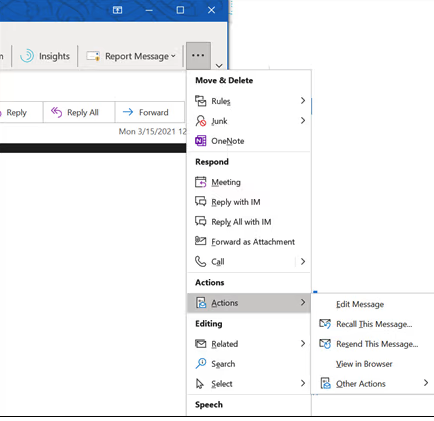
4. Select "Delete unread copies of this message" or "Delete unread copies and replace with a new message," and then select OK.
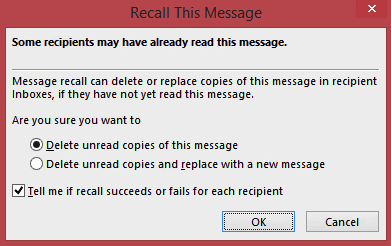
5. If you're sending a replacement message, compose the message, and then select Send.
How to recall an email in Outlook for Mac (16.94 build or later)
To Note: Message recall is available after you select Send and is available only if both you and the recipient have a Microsoft 365 work or school email account in the same organization.
Messages sent to or from a Hotmail, Gmail, or live.com account can't be recalled.
1. Select Sent in the left folder pane, then double-click the sent message to open it in a separate window.
2. From the ribbon, select the Recall Message button, then select OK in the confirmation dialog box.
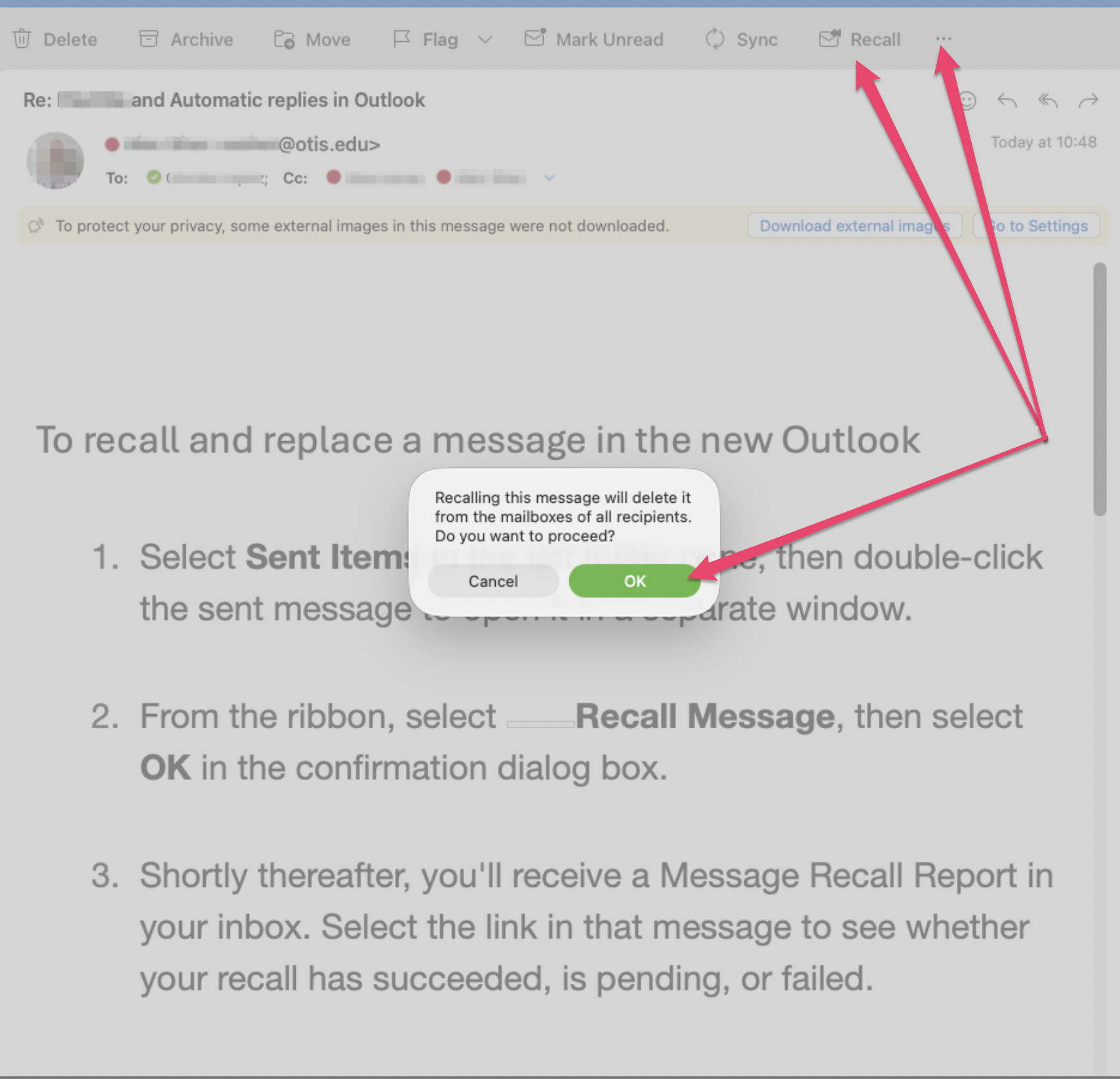
Tip: You can also use Control-click to open the shortcut menu for your message and select Recall.
3. Shortly thereafter, you'll receive a Message Recall Report in your inbox. Select the link in that message to see whether your recall has succeeded, is pending, or failed.

