


What is HEIC?
HEIC stands for High Efficiency Image Container. It is an image file format commonly used by Apple devices, including iPhones and iPads. HEIC files maintain high image quality while taking up less storage space than traditional JPEG files.
Some applications and websites may not support HEIC files. Converting them to JPG (JPEG) can improve compatibility when sharing or uploading images.
On a Mac
There are two easy ways to convert HEIC files to JPG using built-in macOS tools.
Option 1: Using Preview
-
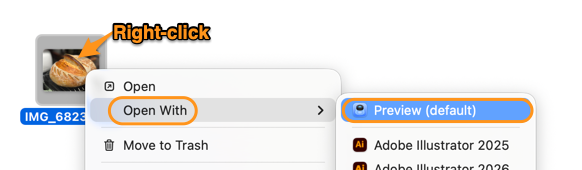
Right-click the HEIC file and select Open With > Preview.
-
-
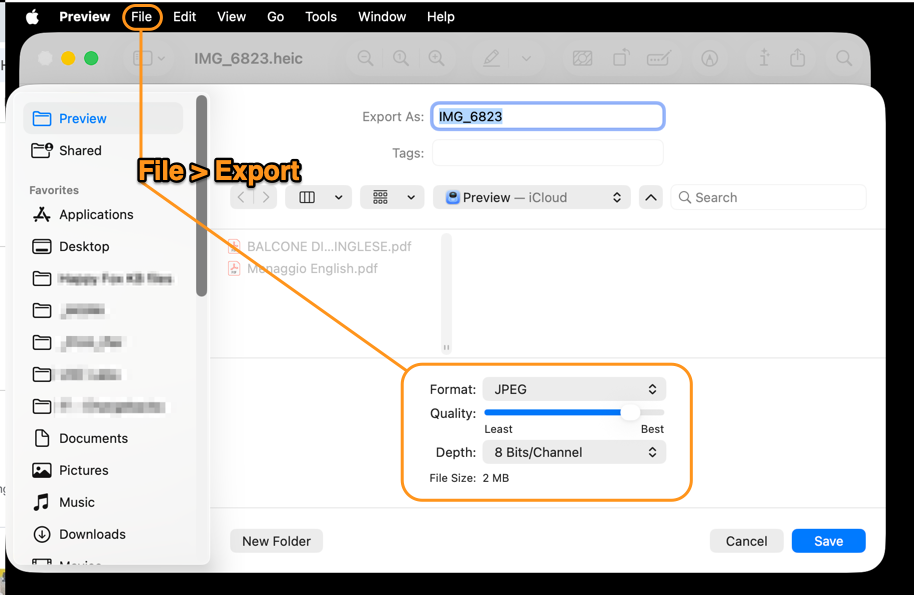
In the menu bar, select File > Export.
-
-
From the Format drop-down menu, select JPEG.
-
Enter a name for the converted image and choose where you want to save it.
-
Click Save.
Your image will now be saved as a JPG file.
Option 2: Using Quick Actions
-
Right-click the HEIC file in Finder.
-
Select Quick Actions > Convert Image.
-
Under Format, select JPEG.
-
Choose your preferred image size and decide whether to preserve the image metadata.
-
Click Convert to JPEG.
The converted JPG file will be saved in the same location as the original HEIC file.
On Windows
There are two easy ways to convert an HEIC image to JPG using built-in Windows applications.
Option 1: Using the Photos App
-
Open the HEIC file in the Photos app.
-
Click the three-dot menu (...) in the upper-right corner.
-
Select Save as.
-
Choose JPEG/JPG as the file format.
-
Select a file name and location, then save the converted image.
Option 2: Using Microsoft Paint
-
Right-click the HEIC file and select Open with > Paint.
-
In Paint, click File > Save as.
-
Select JPEG picture.
-
Choose a file name and location.
-
Click Save.

